Getting Started
Last update: October 8, 2026
This guide walks you through everything needed to get Tolk for Cisco UC up and running — from prerequisites to your first successful AI agent connection.
Before You Begin
The full journey takes six steps:
On the Docker host, the installation itself only requires a few shell commands (Steps 3 and 4).
All the configuration is then done from the Admin Web UI (Step 5).
Estimated time: ~two hours for a standard deployment on a prepared Docker host.
Step 1 — Prerequisites
Docker
Tolk for Cisco UC is deployed as a Docker container.
Requirements:
- Docker Engine ≥ 27.0
- Docker Compose ≥ 2.32
For installation instructions, refer to the official Docker documentation.
Service account: create a dedicated non-root user (e.g. docker) and add it to the docker group so it can manage containers without sudo:
All subsequent commands in this guide assume you are logged in as this user.
Host operating system: any OS capable of running Docker.
- Linux — recommended for production (Docker Engine)
- macOS — supported via Docker Desktop
- Windows — supported via Docker Desktop with WSL 2
Production recommendation
For production deployments, use a Linux host with Docker Engine for best performance, stability, and security. Docker Desktop (macOS / Windows) is suitable for evaluation, development, and lab environments.
Minimum host resources:
- CPU: 2 vCPUs
- RAM: 2 GB
- Disk: 10 GB (varies with backup retention and report volume)
Cisco UC Requirements
The CUCM module uses three protocols: AXL, RIS, and SSH — plus HTTPS towards the endpoints for the optional IP phones and RoomOS submodules.
| Protocol | Requirement |
|---|---|
| AXL | Activate Cisco AXL Web Service on the publisher node (Serviceability → Tools → Service Activation). Create a user (End User or Application User) with the roles "Standard AXL API Users", "Standard SERVICEABILITY" and "Standard CCM Admin Users" |
| RIS | Cisco RisPort70 runs by default — no activation needed. Same credentials as AXL. |
| SSH | SSH access enabled on CUCM nodes. A platform administrator (OS admin) account with privilege level 4 ("Advanced") is required. |
| IP phones (HTTPS) | Screenshots, web information pages and text messages on Cisco IP Phones 88xx / 98xx, through the phone web server. Enable Web Access on the phones. Create a CUCM user (End User or Application User) for phone web access, with the target phones in its Controlled Devices. |
| RoomOS (xAPI / HTTPS) | Cisco RoomOS devices driven through their xAPI over HTTPS. Keep the HTTPS web server enabled on the devices (NetworkServices HTTP Mode: HTTPS or HTTP+HTTPS). Create a local account on the devices with the roles matching the intended operations: Admin (all configuration and commands), User (phonebook, calls, most reads), Integrator / RoomControl (UI extensions, on-screen messages), Audit (logs). |
The IMP module uses two protocols: AXL and SSH.
| Protocol | Requirement |
|---|---|
| AXL | Activate Cisco AXL Web Service on the IMP publisher node. Same credentials as CUCM AXL. |
| SSH | SSH access enabled on IMP nodes. A platform administrator (OS admin) account with privilege level 4 ("Advanced") is required. |
The CUC module uses two protocols: CUPI (REST) and SSH. There is no AXL/SOAP and no cluster concept — operations are scoped per host.
| Protocol | Requirement |
|---|---|
| CUPI | REST is enabled by default on tcp/8443 (/vmrest/). Create a Unity Connection administrator account. For read-only use, the "System Administrator" role is sufficient. For write operations (provisioning users, call handlers, schedules, etc.), assign the appropriate role template covering the targeted CUPI endpoints. |
| SSH | SSH access enabled on CUC nodes. A platform administrator (OS admin) account with privilege level 4 ("Advanced") is required. |
Nominative accounts — best practice
Create a dedicated account per Tolk user on Cisco UC servers, rather than sharing a single service account. This enables per-user access control, end-to-end audit trail correlation, and credential isolation.
Network Requirements
Ensure the following ports are open on your firewalls:
| Source | Destination | Port | Protocol | Purpose |
|---|---|---|---|---|
| AI Agent | Tolk Server | tcp/8443* | HTTPS | (without proxy) MCP client connectivity |
| Web-reverse Proxy | Tolk Server | tcp/8443* | HTTPS | (with proxy) MCP client connectivity proxified |
| Admin Network | Tolk Server | tcp/9443* | HTTPS | (without proxy) Webadmin UI connectivity |
| Web-reverse Proxy | Tolk Server | tcp/9443* | HTTPS | (with proxy) Webadmin UI connectivity proxified |
| Tolk Server | CUCM | tcp/8443 | HTTPS | AXL/SOAP, RIS/SOAP |
| Tolk Server | CUCM | tcp/22 | SSH | VOS CLI commands |
| Tolk Server | Devices (phones & roomOS) | tcp/443 | HTTPS | Devices management, messages, screenshots, ... |
| Tolk Server | IMP | tcp/8443 | HTTPS | AXL/SOAP |
| Tolk Server | IMP | tcp/22 | SSH | VOS CLI commands |
| Tolk Server | CUC | tcp/8443 | HTTPS | CUPI/REST |
| Tolk Server | CUC | tcp/22 | SSH | VOS CLI commands |
| Tolk Server | SFTP Server | tcp/22 | SSH | (optional) Backup export |
| Tolk Server | DNS Server | udp/53 | DNS | Internal domain name resolution |
* Default MCP_SERVER_PORT & ADMIN_UI_PORT — configurable (see Step 3.5).
No internet access required
The server never initiates outbound connections to the internet. Licensing, updates, and telemetry are fully offline.
Step 2 — Obtain Your License
Tolk for Cisco UC requires a valid license to run. Each license is bound to the server hostname.
Retrieve your server hostname:
Hostname binding
The license is locked to the FQDN returned by hostname -f on the Docker host. Make sure this hostname is stable before ordering — any change (Hostname or domain name) will invalidate the license.
To order a license:
- Contact tolk@sourdeau.com with your organization name, intended deployment scope, and the server hostname (
hostname -f). - You will receive a
license.jwtfile by secure transfer. - The license is uploaded after first startup through the Admin Web UI (Step 5.1).
Demo license available
A time-limited demo license is available on request to evaluate the product in your environment.
License is version-agnostic
A valid license continues to work across upgrades — no re-issuance needed after an upgrade.
Step 3 — Install
3.1 Obtain the Package
Tolk is distributed as a single archive:
tolk-for-cisco-uc-<version>.tar.gz # Release archive (config, docker-compose, scripts, pre-built Docker image)
The package is delivered by the editor via secure file transfer. No internet access is required on the target server. Contact tolk@sourdeau.com to get a release.
On the Docker host, create the installation directory:
Then transfer the archive into ~/tolk (e.g. with SFTP):
3.2 Verify Package Integrity
Before installation, verify the archive integrity comparing with the DNS-published SHA-512 checksum:
# 1. Query the DNS TXT record published by the editor (from a computer with public DNS resolution)
dig tolk-for-cisco-uc-<version>.sha512.check.consulting.sourdeau.com txt +short

# 2. Compute the SHA-512 hash of the received archive
sha512sum tolk-for-cisco-uc-<version>.tar.gz

# 3. Compare both values — they must match exactly
# 1. Query the DNS TXT record published by the editor (from a computer with public DNS resolution)
nslookup -q=txt tolk-for-cisco-uc-<version>.sha512.check.consulting.sourdeau.com

# 2. Compute the SHA-512 hash of the received archive
Get-FileHash -Algorithm SHA512 tolk-for-cisco-uc-<version>.tar.gz

# 3. Compare both values — they must match (Get-FileHash prints the hash in upper case)
Do not skip this step
If the values do not match, do not proceed. Contact tolk@sourdeau.com immediately.
3.3 Extract the Package
From within the installation directory, extract the archive, then remove it:
Extract from inside the installation directory
The archive is flat — it has no top-level wrapper folder, so its contents are
written to the current working directory. Always place the .tar.gz in ~/tolk
and run tar -xzf from within ~/tolk, otherwise the files will scatter
wherever you happen to be.
After extraction, the directory contains docker-compose.yml, .env.example, the tolk-setup.sh setup script, the pre-built Docker image, and all supporting files. The package ships no .env: it is created by the setup script (next step), so extracting a later release can never overwrite your configuration.
3.4 Install — Run the Setup Script
On a first install the script:
- Loads the Docker image (
docker load) and deletes the image archive; - Creates
.envas a copy of.env.example(only when.envdoes not exist yet); - stops, so that you set the few Docker-level values of
.envbefore the first startup (Step 3.5).
--dry-run is for upgrades
./tolk-setup.sh --dry-run previews the .env changes of an upgrade
(see Operations). On a first install there is no .env to compare
yet: simply run ./tolk-setup.sh.
Verify the image is loaded:
You should see tolk-for-cisco-uc with the tag latest.
Docker Compose will use the pre-loaded image and mount runtime data from this directory.
3.5 Configure the Docker Bootstrap Values in .env
All configuration is done from the Admin Web UI
The application settings (server identity, authentication, TLS certificates, products, backups,
logging, rate limiting, clients, license…) are all managed from the Admin Web UI after
the first startup — no .env editing is needed for them.
Only a handful of values are read by Docker Compose itself when the container is created
(container hostname, user, published ports), plus the network allow-list of the Admin Web UI,
without which you could not reach it. They must be correct before the first docker compose up -d.
Retrieve the values for your host, UID & GID:
Then edit .env:
| Key | What to set | Why |
|---|---|---|
HOST_FQDN |
Your server's FQDN — output of hostname -f (e.g. tolk.domain.com) |
Required — used as the container hostname; must match the license hostname binding |
UID / GID |
Output of id -u / id -g (default 1000; 0 = root is refused) |
Required if your service account is not UID/GID 1000 — lets the container write to the bind-mounted volumes |
MCP_SERVER_PORT |
MCP transport port for AI agents (default 8443) |
Optional — change only if 8443 conflicts on the host; update your firewall accordingly |
ADMIN_UI_PORT |
Admin Web UI / recovery console port (default 9443) |
Optional — change only if 9443 conflicts; must differ from MCP_SERVER_PORT |
ADMIN_UI_TRUSTED_IPS |
Networks allowed to reach the Admin Web UI (default: RFC 1918 private ranges) | Optional — adjust only if your admin workstations are outside 10.0.0.0/8, 172.16.0.0/12 and 192.168.0.0/16 |
Docker-level settings need a container re-creation
HOST_FQDN, UID / GID, MCP_SERVER_PORT and ADMIN_UI_PORT are applied by Docker Compose.
If you change them later (from the Admin Web UI or in .env), the in-app Apply & restart is not
enough: run docker compose up -d on the host to re-create the container.
Step 4 — First Startup
4.1 Start the Container
Check the container is running and healthy:
On first startup, the server automatically:
- Generates an RSA-4096 key pair — used for JWT signing, backup encryption, and license verification
- Generates a self-signed TLS certificate — from the default identity values; it is regenerated automatically once you set your own server identity (Steps 5.2 – 5.3)
- Runs the software integrity check — against
manifest.jsonandmanifest.sig - Verifies the license — no license is installed yet, so the server starts in recovery mode: the MCP endpoint stays closed and only the Admin Web UI is served
First start runs in recovery mode
Until a valid license is installed, the MCP endpoint (MCP_SERVER_PORT) stays
closed and the server exposes only the Admin Web UI (ADMIN_UI_PORT, the
recovery console). This is expected — you will create an admin account (4.2), then
configure the server and upload the license from the Web UI (Step 5).
4.2 Create the Admin Account
The Admin Web UI ships with no default administrator account. Create your first administrator
account (profile superadmin) directly inside the running container:
You are prompted for the password twice (New password: / Confirm password:); the input is not
echoed, and the password is never kept in your shell history or visible in the process list.
Password policy
The password must comply with the policy (default: at least 12 characters, with complexity).
Further administrator accounts are then created from the Administrators page of the Web UI.
4.3 Sign In to the Admin Web UI
Open the Admin Web UI in your browser — it listens on ADMIN_UI_PORT (default 9443):
Accept the TLS certificate warning (the certificate is self-signed on first start),
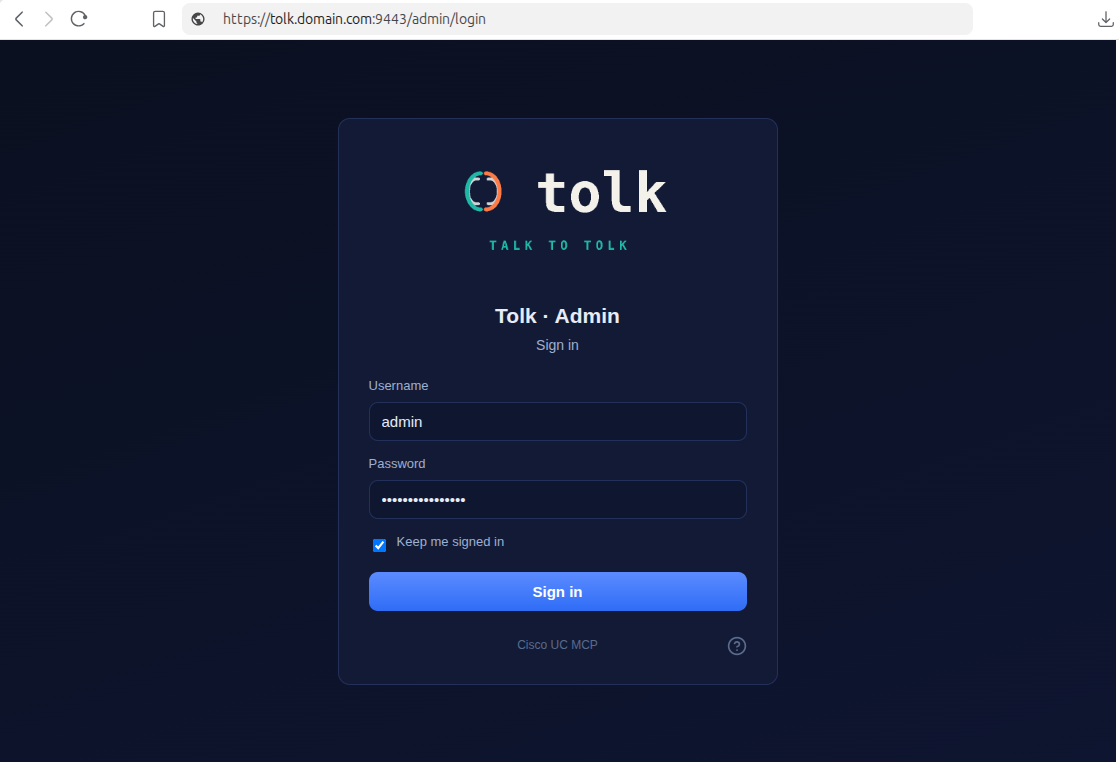
then sign in with the admin account created in Step 4.2.
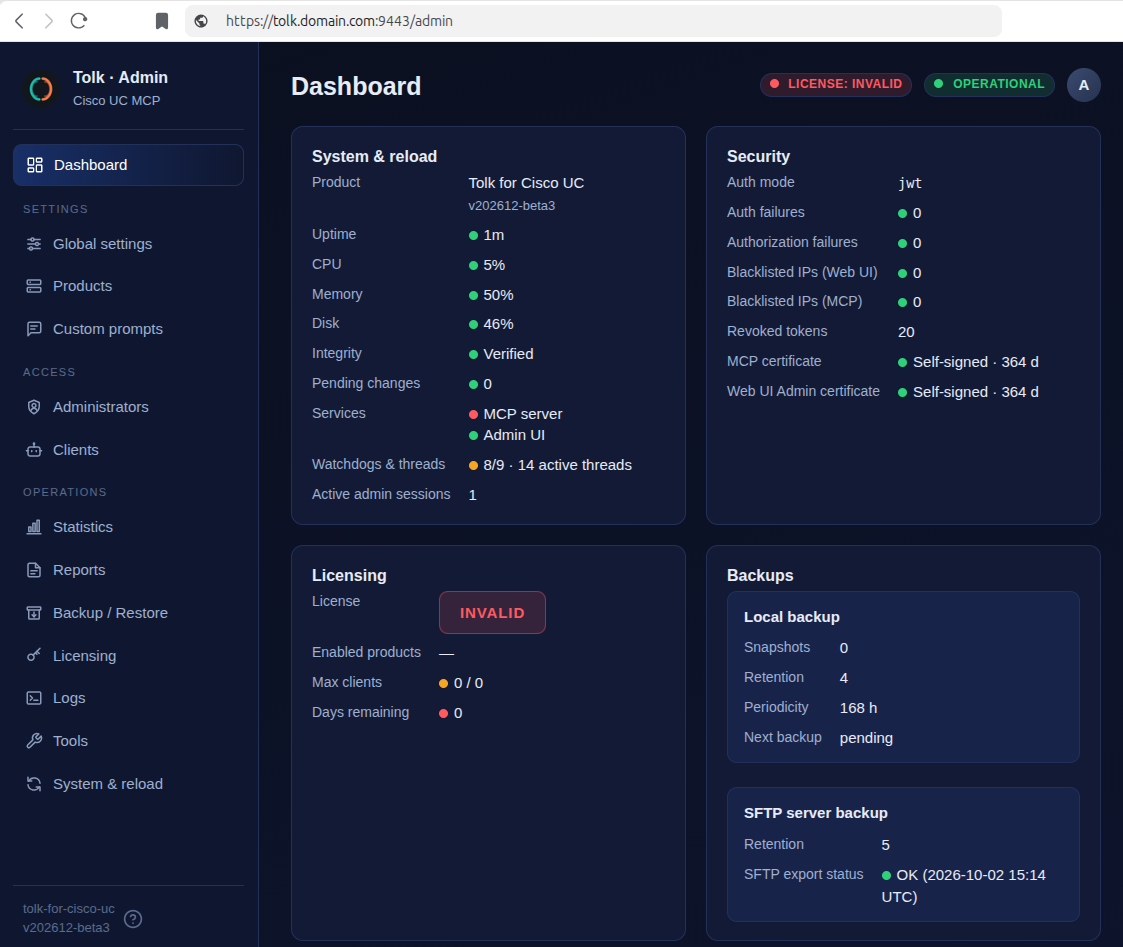
The Dashboard opens. As no license is installed yet, the License tile is flagged as not valid — this is the recovery mode described above.
Step 5 — Configure from the Admin Web UI
From now on, all configuration is done in the Admin Web UI. Every change is staged first, then activated by Apply & restart — you can stage several changes (license, identity…) and apply them all with a single restart.
Full configuration reference
All available settings are documented in the Setup guide, and each setting has a contextual help text in the Web UI.
5.1 Import Your License
- Open the Licensing page. The Server hostname shown must match the hostname bound to your license.
- In the Import license card, select your
license.jwtfile (or paste the token) and click Import license. The signature is validated and the detected license is previewed before it is imported.
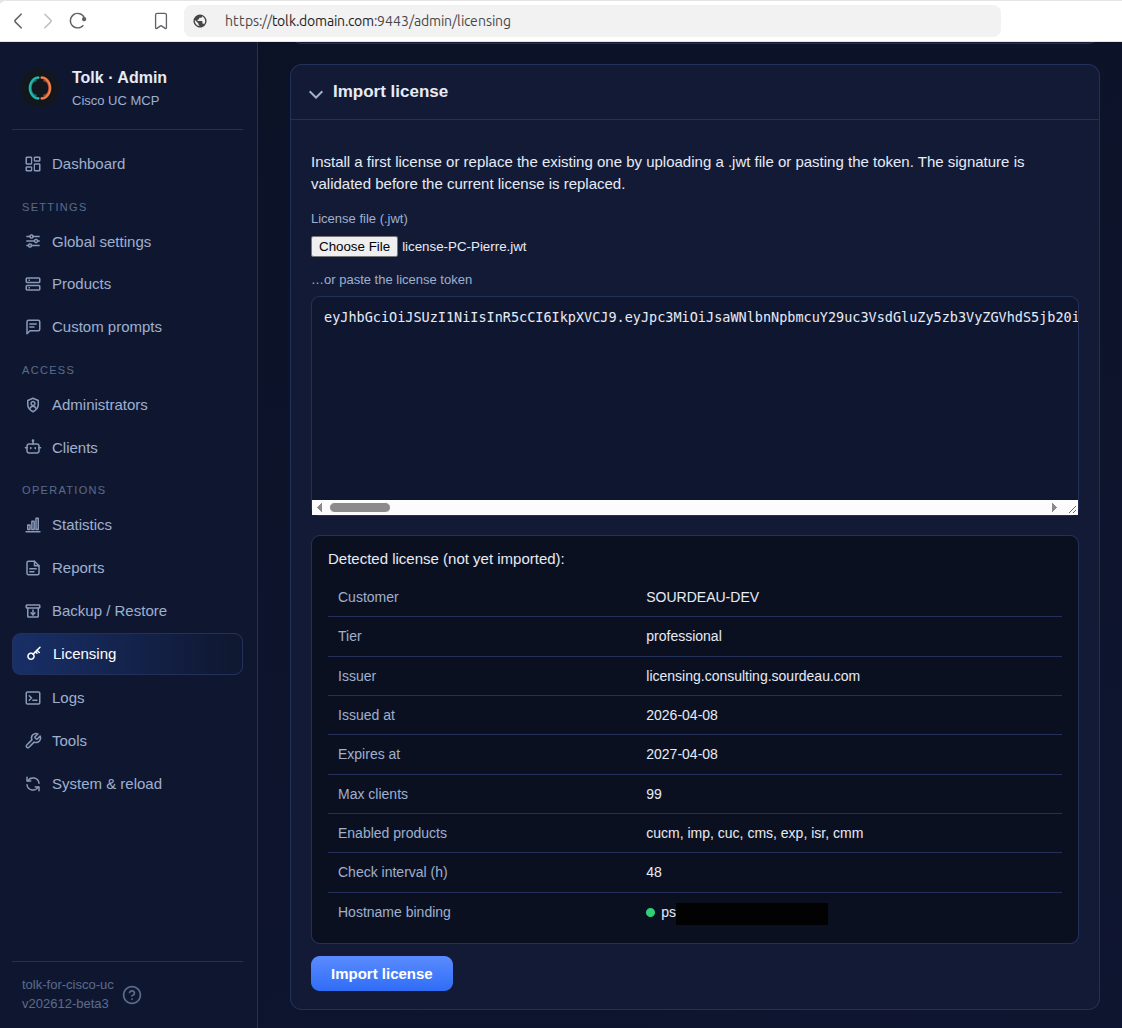
The license is staged: it becomes active at the next Apply & restart (Step 5.3).
5.2 Set the Server Identity
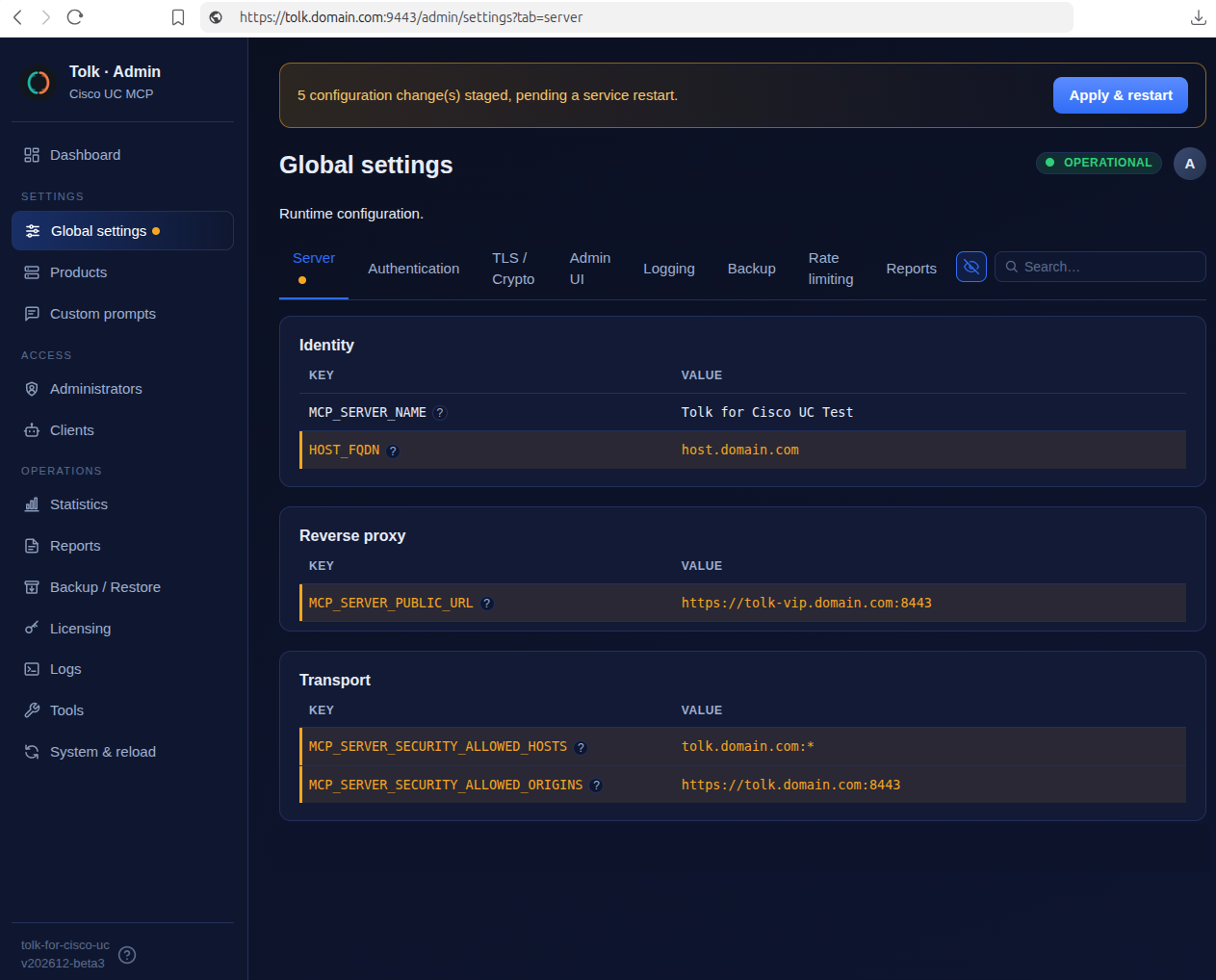
Open Global settings and set the values identifying your server: click Edit on a setting, enter the
new value and click Save (a contextual help text describes each setting). The defaults (tolk.domain.com)
must be replaced with your server's FQDN:
| Tab → Section | Setting | What to set | Why |
|---|---|---|---|
| Server → Reverse proxy | MCP_SERVER_PUBLIC_URL, TRUSTED_PROXY_IPS |
(optional) Public URL and proxy IPs, only behind a reverse proxy / VIP | Advertised URL and real client IP behind the proxy |
| Server → Transport | MCP_SERVER_SECURITY_ALLOWED_HOSTS |
Your server FQDN (e.g. tolk.domain.com:*; loopback is implicit) |
DNS rebinding protection and TLS certificate SAN entries |
| Server → Transport | MCP_SERVER_SECURITY_ALLOWED_ORIGINS |
Your server origin (e.g. https://tolk.domain.com:8443) |
CORS / Origin header validation |
| Authentication → Identity | AUTH_ISSUER |
Your server's HTTPS URL (e.g. https://tolk.domain.com:8443) |
Embedded in JWT tokens and OAuth metadata; CN of the TLS certificate |
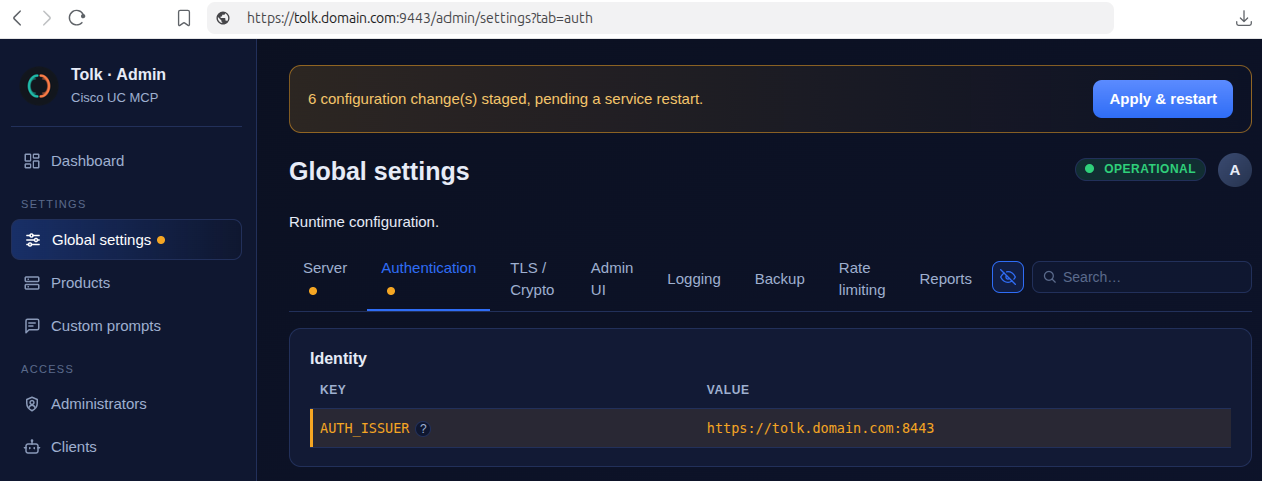
Organization fields of the certificate
While in Global settings, you can also fill the CERT_* fields (Country, State, Organization, OU)
on the TLS / Crypto tab: they populate the subject of the self-signed certificate and of future CSRs.
5.3 Apply & Restart
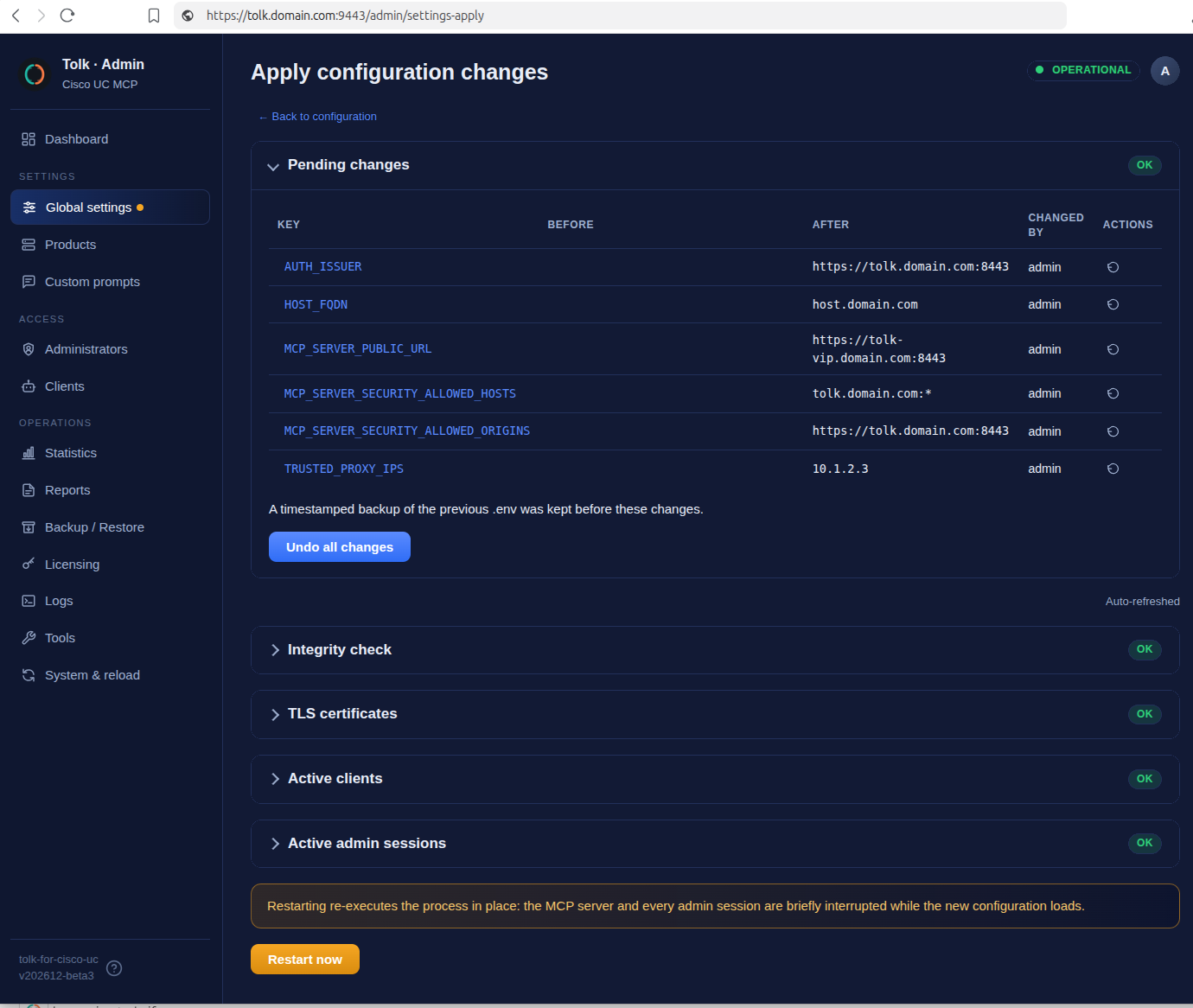
A banner shows the number of staged changes. Click Apply & restart: the Apply configuration changes page lists the pending changes (before / after values, author — each one can be undone) and runs the pre-restart checks:
- Integrity check — the software files match the signed manifest;
- TLS certificates — each listener will start with a valid certificate. Having changed the server identity, this check may report that the self-signed certificate will be regenerated at restart: this is expected;
- Active clients / Active admin sessions — the MCP clients and admin sessions that the restart will briefly interrupt.
Check there is no Failed status, then click Restart now.
After the restart:
- the server leaves recovery mode: the MCP endpoint is served on
MCP_SERVER_PORT(default8443) and the licensed product tools become available; - the self-signed TLS certificate is regenerated automatically with your server identity — CN =
AUTH_ISSUERhost, SAN entries derived fromMCP_SERVER_SECURITY_ALLOWED_HOSTS(andMCP_SERVER_PUBLIC_URL), withoutlocalhost/127.0.0.1. Your browser shows a new certificate warning: this is expected.
The Licensing page now shows the license details (customer, tier, expiry, enabled products, max clients).
5.4 Trust the Cisco UC Certificates
TLS certificate verification towards Cisco UC nodes is enabled by default (SERVER_CUCM_SSL_VERIFY,
SERVER_IMP_SSL_VERIFY, SERVER_CUC_SSL_VERIFY = True). Tolk must therefore trust the CA that issued
the tomcat certificates of your nodes (or the tomcat certificates themselves).
For IP phones and RoomOS devices, verification is disabled by default (SERVER_CUCM_PHONES_SSL_VERIFY,
SERVER_CUCM_ROOMOS_SSL_VERIFY = False): no trust store is needed unless you enable it.
- Open the Products page, then the tab of your product (CUCM, IMP, CUC — only licensed products are shown).
- On the
SERVER_<PRODUCT>_SSL_CA_BUNDLEsetting, click View / Edit to open the CA trust store. - Paste the PEM certificate(s) in Add a certificate — duplicates are ignored.
- Click Apply & restart to load the updated trust store.
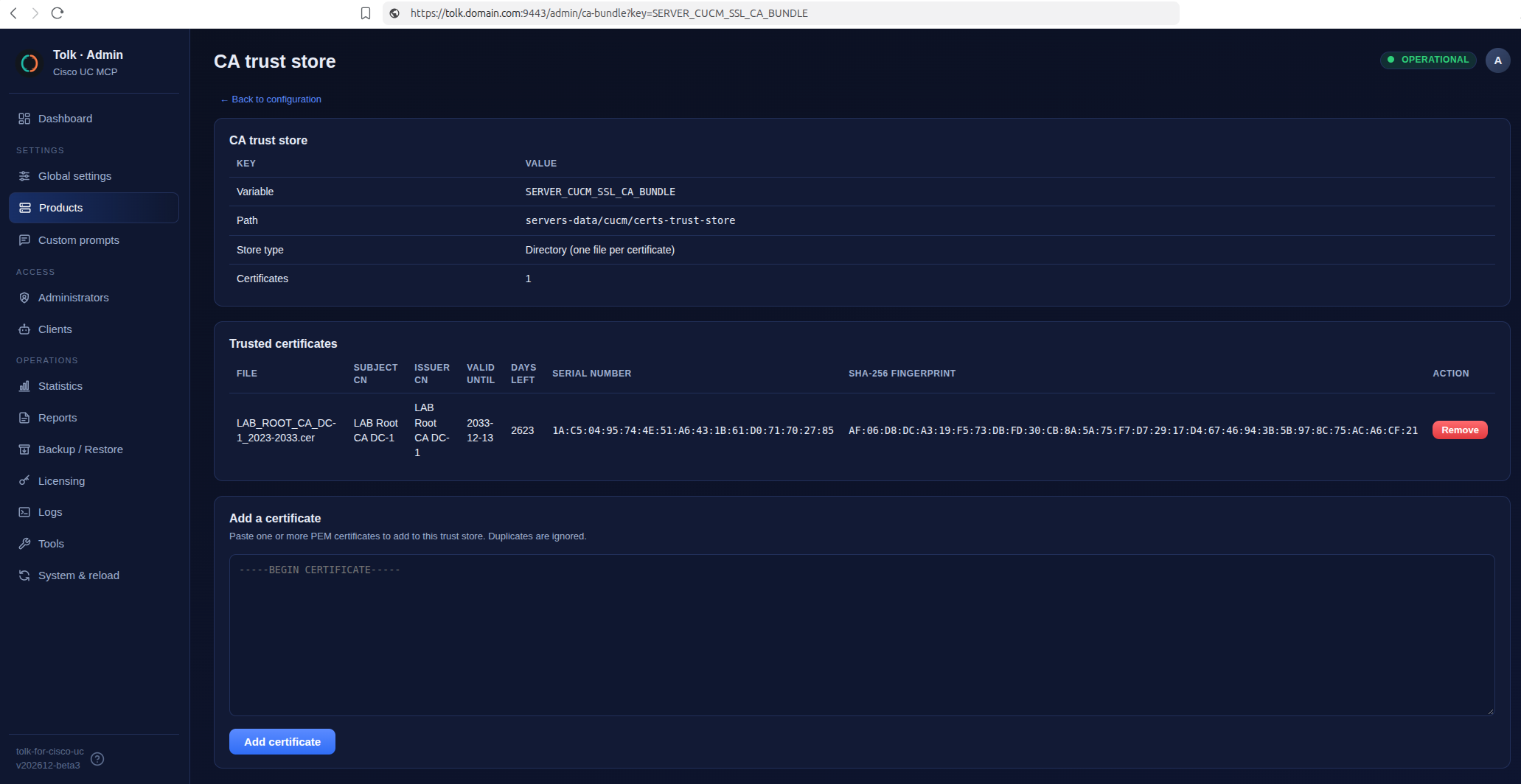
Review the other product settings on the same page (ports, timeouts, IP phones and RoomOS sub-modules…); see Setup for the full reference.
5.5 Test the Connectivity to Cisco UC (recommended)
Before connecting an AI agent, check that Tolk can reach your Cisco UC nodes:
- Open Tools → Product connectivity test.
- Select the product (CUCM, IM & Presence, Unity Connection, IP phone or RoomOS device), enter the node or device FQDN or IP address and, optionally, the API and SSH (OS admin) credentials — they are used for this test only and never stored.
- Click Run the test. The checks are listed in order, from the network up to the application: DNS, TCP, TLS (certificate, chain against the product trust store, clock), authentication, APIs and SSH CLI.
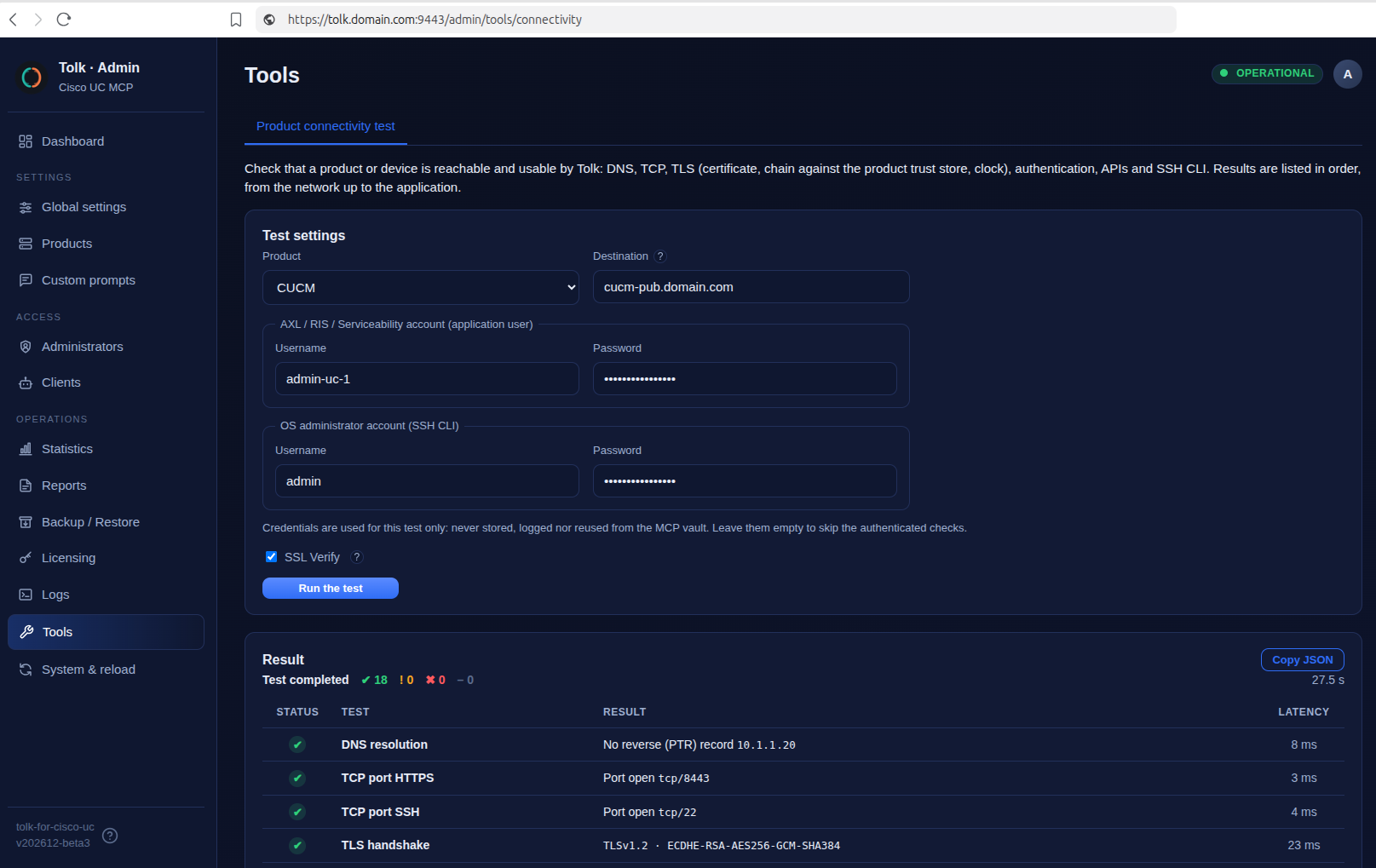
Fix any failed check (firewall, DNS, missing CA in the trust store, account role…) before going further.
5.6 Use CA-Signed Certificates (optional)
Tolk uses two independent TLS certificates, each auto-generated as self-signed at first startup and fully managed from the Admin Web UI (Global settings page):
- MCP Server certificate — served on the MCP port; this is the certificate your AI agents connect to.
- Web Admin UI certificate — served on the admin port. By default it reuses the MCP Server certificate (
ADMIN_UI_TLS_REUSE_MCP_CERT='1'), so there is nothing separate to manage.
To replace a self-signed certificate with one signed by your internal CA, follow the matching tab below. The workflow is the same in both cases: review the subject → generate the CSR → sign it with your CA → import the .crt → Apply & restart. Each listener keeps a single certificate/key pair: the imported CA-signed certificate replaces the self-signed one in the same file.
Managed on the Global settings page → TLS / Crypto tab → MCP server certificate section (MCP_TLS_CERT_FILE, MCP_TLS_KEY_FILE, MCP_TLS_CSR_FILE).
- Review the subject fields. The
AUTH_ISSUERFQDN is used for the certificate CN and first SAN (the URL port is ignored — certificates are host-bound, not port-bound); the other non-loopback hosts ofMCP_SERVER_SECURITY_ALLOWED_HOSTSand theMCP_SERVER_PUBLIC_URLhost are added as secondary SANs. TheCERT_*fields (Country, State, Org, OU) populate the rest of the subject. - Generate the CSR. Click Generate CSR…: a preview shows the subject (CN, O, OU, L, ST, C), the key and the SAN list. Remove a SAN with its red ✕ or type an extra one (host name,
*.domainwildcard or IP address) and click Add — these changes apply to this CSR only. The CSR is signed with the server's existing private key (the key is preserved; a new one is generated only if none exists). Download the generated.csr. - Sign it with your CA. Submit the CSR to your internal CA and obtain the signed certificate (
.crt, PEM format). The required Extended Key Usage (EKU) is "Not Critical - TLS WWW Server Authentication". - Import the certificate. Back in the MCP server certificate section, upload the signed
.crtasMCP_TLS_CERT_FILE. If it matches the private key, the now-spent CSR is removed automatically. - Apply & restart. Importing a certificate stages a restart-required change — click Apply & restart to load it. Before restarting, the page's TLS certificates check confirms that each listener's certificate and key are present, valid, matching and not expired (warning when more than 50% of the lifetime has elapsed, failure when the restart would fail).
The admin port certificate has two modes, both configured on the Global settings page → Admin UI tab → TLS section.
Reuse the MCP certificate — default
Leave ADMIN_UI_TLS_REUSE_MCP_CERT enabled ('1'). The admin UI serves the same certificate as the MCP server — including your CA-signed one once imported above. Nothing else to do. This works because the certificate SANs are host-bound, not port-bound, so the same certificate is valid on both ports (as long as the admin UI shares the MCP hostname).
Dedicated CA-signed certificate
Use this only if the admin UI must present a different certificate (e.g. a different hostname than the MCP endpoint).
- Disable reuse. Set
ADMIN_UI_TLS_REUSE_MCP_CERTto'0'. Until you import a CA-signed cert, the admin UI auto-generates its own self-signed certificate. - Review the subject fields. The admin UI CN is the
AUTH_ISSUERhost; its SANs come fromADMIN_UI_TLS_ALLOWED_HOSTS(leave empty to reuseMCP_SERVER_SECURITY_ALLOWED_HOSTS) plus theMCP_SERVER_PUBLIC_URLhost, without loopback; the organisation fields reuse the sharedCERT_*settings. - Generate the CSR. In the TLS section, click Generate CSR… (same preview and SAN editing as for the MCP certificate). It is signed with the admin UI's own existing private key (preserved across regenerations). Download the
.csr. - Sign & import. Have your CA sign it. The required Extended Key Usage (EKU) is "Not Critical - TLS WWW Server Authentication". Then upload the resulting
.crtin the same section. The spent CSR is removed automatically when it matches the key. - Apply & restart to load the new admin UI certificate.
After the restart, the server serves your CA-signed certificate instead of the self-signed one.
To revert to a self-signed certificate, use Delete certificate + key on the certificate page and restart.
Step 6 — Connect Your AI Agent
6.1 Choose the Authentication Mode
Before declaring your first client, choose the global authentication mode AUTH_MODE: it determines which
credentials are issued to the clients and how AI agents authenticate.
AUTH_MODE |
Credentials issued to each client | Suited for |
|---|---|---|
jwt (default) |
A long-lived signed JWT bearer token (AUTH_TOKEN_EXPIRY_DAYS, default 365 days), set as a static Authorization header in the agent configuration |
The simplest setup — most AI agents |
oauth2 |
A client_id and a one-time client_secret; the agent obtains short-lived access tokens (AUTH_OAUTH_TOKEN_EXPIRY_SECONDS, default 1 hour) through OAuth 2.1 — authorization code + PKCE for AI IDEs, client credentials for scripts |
Stricter credential hygiene — OAuth-capable agents, automated pipelines |
jwt+oauth2 |
Hybrid — each client declares its own mode (jwt, oauth2 or jwt+oauth2) when it is created |
Mixed environments |
- Open Global settings → Authentication tab → Identity section.
- Click Edit on
AUTH_MODE, select the mode and click Save.
If you keep the default jwt mode, there is nothing to change. In oauth2 or jwt+oauth2 mode, also review the
OAuth2 redirect URIs section of the same tab: AUTH_OAUTH_REDIRECT_URI_ENFORCEMENT='strict' with an
AUTH_OAUTH_REDIRECT_URIS allow-list is recommended in production (see Setup).
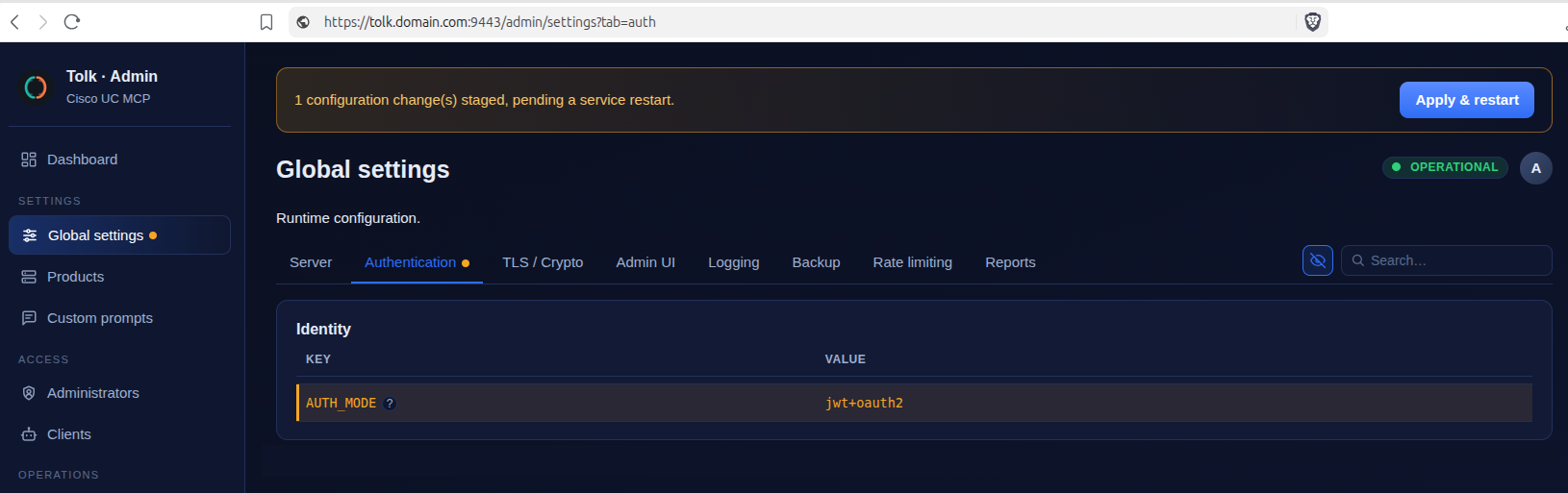
The change is staged: it is applied together with the new client at the Apply & restart of Step 6.2 — a single restart is enough.
Choose the mode before distributing credentials
Changing AUTH_MODE once clients exist invalidates the credentials already distributed: tokens issued under
the previous mode are rejected, and the new credentials must be transmitted again to every client owner.
A mode more restrictive than a client's own mode is refused: in jwt+oauth2, first set the clients to the
target mode on the Clients page. Switching to jwt+oauth2 keeps each existing client on its previous mode.
6.2 Create a Client
Each AI agent authenticates as a declared client. Create one from the Admin Web UI:
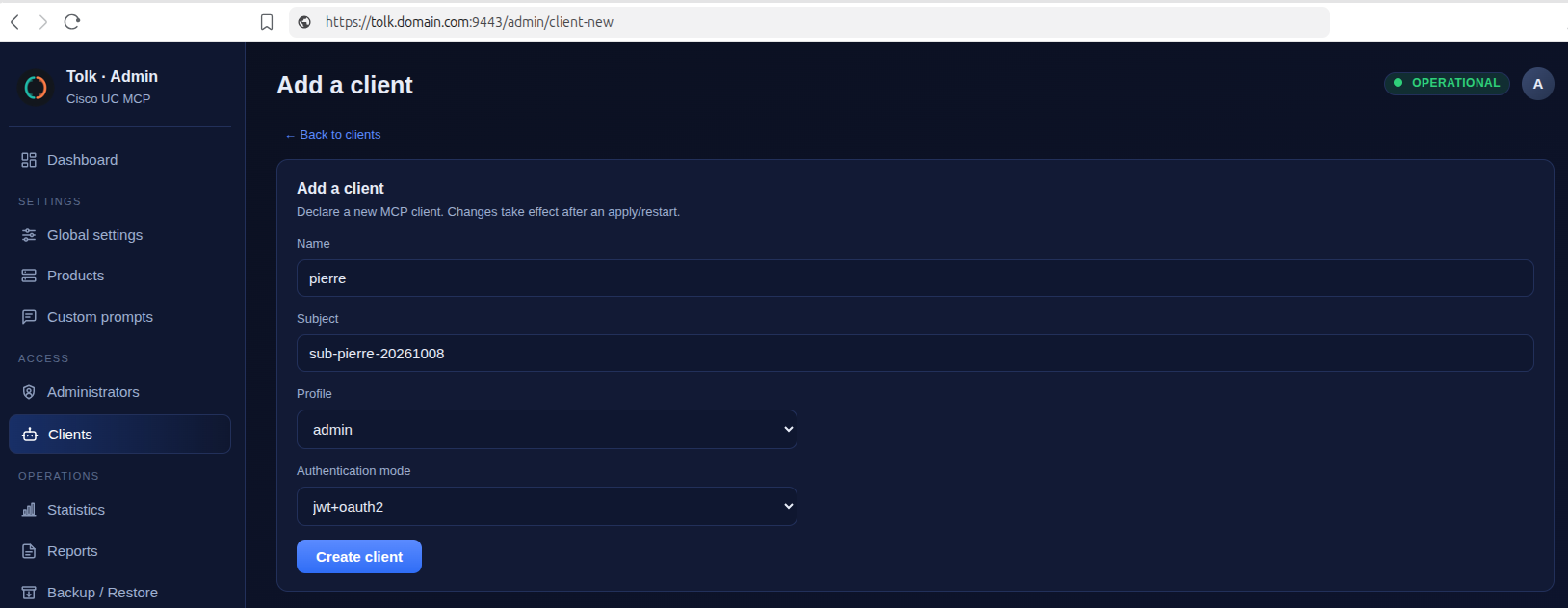
- Open the Clients page and click Add client.
- Declare the client — name, subject (the JWT
subclaim, e.g.sub-<name>-YYYYMMDD) and RBAC profile; injwt+oauth2mode, also its authentication mode — then click Create client. - The change is staged. Click Apply & restart to activate the new client (and the
AUTH_MODEset in Step 6.1).
Subject immutability
The subject is embedded in every token issued to the client: changing it later invalidates the credentials already distributed.
6.3 Retrieve the Client Credentials
After the restart, return to the Clients page and click View credentials on your client.
The connection details are displayed, including:
| Field | Use |
|---|---|
| Server URL | The MCP endpoint, e.g. https://tolk.domain.com:8443/mcp/ |
| Client ID | OAuth 2.1 client identifier |
| JWT token | Long-lived bearer token (JWT auth mode, default: 365 days) |
| OAuth2 client secret | Client secret (OAuth 2.1 mode) |
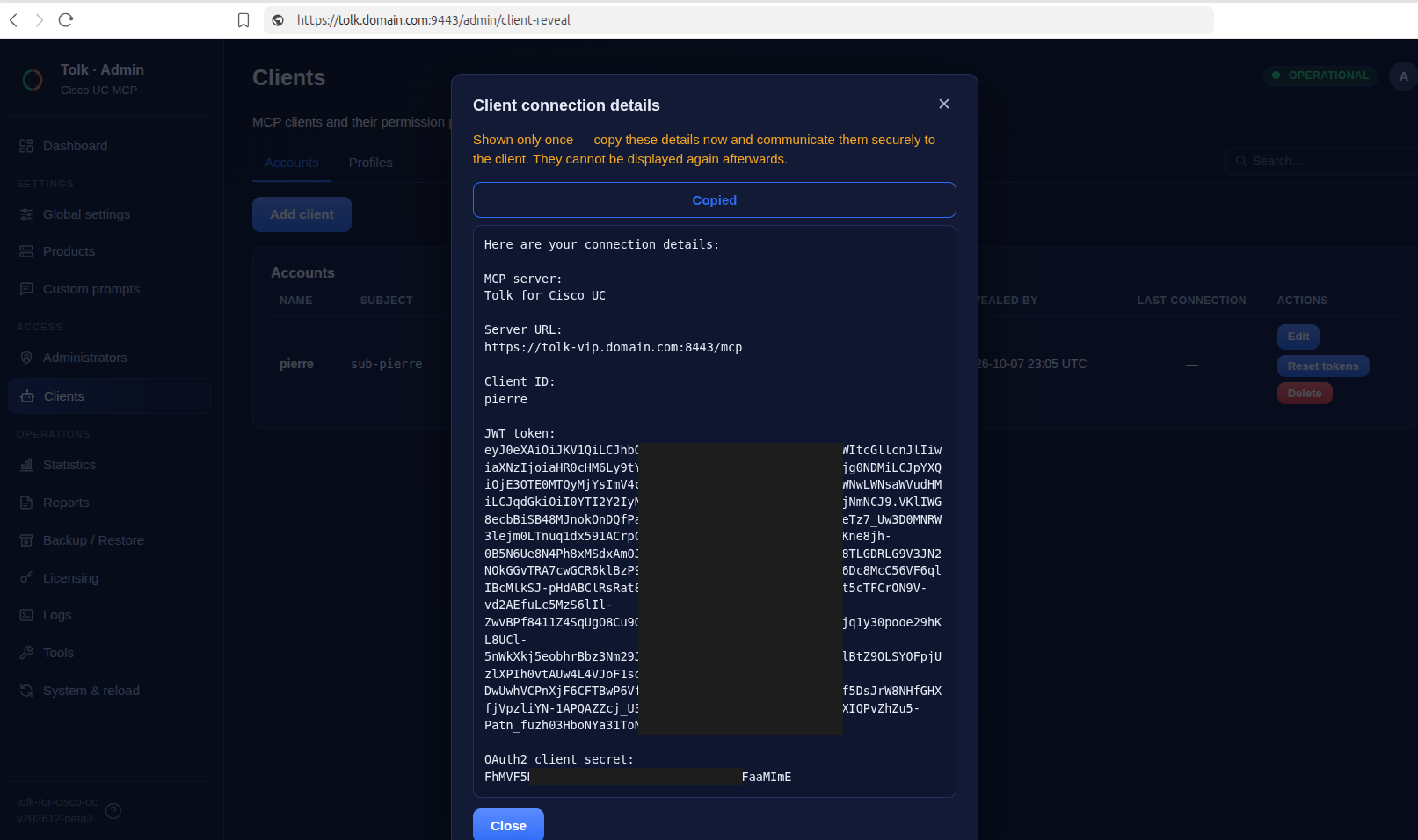
Shown only once
These credentials are displayed a single time — copy them now and transmit them securely to the client owner. They cannot be displayed again; if lost, use Reset tokens on the Clients page to issue new ones.
6.4 Configure Your First AI Agent
Add the MCP server to your agent's configuration file. The examples below are for the jwt mode, using the token retrieved above.
OAuth 2.1 mode
In oauth2 mode, declare the server without the Authorization header: an OAuth-capable agent
discovers the authorization server by itself and opens the Tolk login page in your browser, where you
enter the client_id and client_secret (see the FAQ for an OpenCode example). An agent
supporting the client credentials grant can instead read the client_id and client_secret from its
configuration and obtain its tokens without a browser (see OAuth 2.1 Mode).
Edit claude_desktop_config.json:
{
  "mcpServers": {
    "tolk-vip-mcp-server-jwt": {
      "command": "/home/user/.nvm/versions/node/vxx.xx.x/bin/npx",
      "args": [
        "mcp-remote@latest",
        "https://tolk.domain.com:8443/mcp",
        "--transport", "http-only",
        "--header", "Authorization:${AUTH_HEADER}"
      ],
      "env": {
        "AUTH_HEADER": "Bearer <paste-token-here>",
        "NODE_EXTRA_CA_CERTS": "/home/user/.config/Claude/ROOT_CA.cer"
      }
    }
  }
}
Edit opencode.json:
Edit ~/.cursor/mcp.json (or the project-level .cursor/mcp.json):
6.5 Trust the Server Certificate
Your AI agent must trust the MCP server's TLS certificate — whether it is the auto-generated self-signed certificate or a CA-signed certificate deployed in Step 5.6. Import the certificate into your client's trust store or configure the client to accept it.
6.6 Verify the Connection
Ask your AI agent to check MCP connectivity and list available tools.
You should see the MCP server status like MCP server is healthy and ready and the tools list (common_, infra_ and {products}_).
What's Next?
| Guide | What you'll find |
|---|---|
| Setup | Advanced setup configuration: Full parameters reference, TLS configuration, transport hardening, audit logging, authentication modes, client management, RBAC profiles |
| Operations | Usual operations: Starting/stopping, monitoring, backup, upgrade, key rotation |